
Video Walkthrough
Not sure why 2FA matters? Watch this short video to understand why two-factor authentication is essential for protecting your accounts:
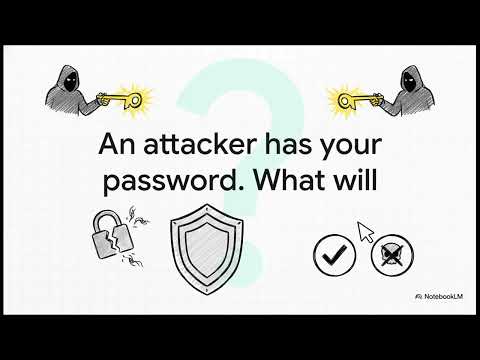
▶ Watch on YouTube: How to Set Up Two-Factor Authentication
Part 1 — Microsoft 365 (Office 365)
Microsoft 365 2FA protects your @redlandschristian.org email, Teams, OneDrive, and all other M365 apps.
What You'll Need
- Your RCS Office 365 email address (e.g., yourname@redlandschristian.org)
- Your current Office 365 password
- Your phone or device
- The Microsoft Authenticator app (download from the App Store or Google Play)
Note: If you no longer have access to your old device and are completely locked out, skip to the Locked Out? section below.
Step 1: Install the Microsoft Authenticator App
- On your phone, open the App Store (iPhone) or Google Play (Android).
- Search for Microsoft Authenticator.
- Download and install the app by Microsoft Corporation.
- Open the app — you do not need to sign in to the app itself.
Step 2: Access Your Microsoft Security Settings
- On a computer, open a browser and go to https://mysignins.microsoft.com/security-info.
- Sign in with your RCS Office 365 email and password.
- If prompted for 2FA and you still have access to your old method, use it now. If not, see Locked Out? below.
Step 3: Add Your Authenticator
- On the Security Info page, click + Add sign-in method.
- From the dropdown, select Authenticator app and click Add.
- Click Next on the first screen.
- A QR code will appear on your computer screen.
- On your phone, open Microsoft Authenticator, tap + (top right), then tap Work or school account.
- Tap Scan a QR code and point your camera at the QR code on your computer screen.
- Your RCS account will appear in the app. Click Next on the computer.
- Enter the 6-digit code shown in the app when prompted to verify. Click Next.
You should see a confirmation that the authenticator has been added successfully.
Step 4: Remove Your Old Device (Optional but Recommended)
- Back on the Security Info page, find your old authenticator method.
- Click Delete next to it and confirm.
This prevents confusion and keeps your account secure.
Part 2 — Google Workspace (acarcs.org)
Google 2-Step Verification protects your @acarcs.org Gmail, Google Drive, Google Classroom, and all other Google Workspace apps.
What You'll Need
- Your RCS Google account (e.g., yourname@acarcs.org)
- Your current Google account password
- Your phone (for the Google prompt or an authenticator app)
Step 1: Open Your Google Account Security Settings
- On a computer, go to https://myaccount.google.com/security.
- Sign in with your @acarcs.org account if prompted.
- Scroll down to the "How you sign in to Google" section.
- Click on 2-Step Verification.
Step 2: Start the Setup
- Click Get started.
- Google may ask you to re-enter your password to confirm your identity.
Step 3: Choose Your Second Factor
Google offers several options — choose the one that works best for you:
- Google Prompt (recommended): A push notification appears on your phone — just tap Yes to approve sign-in.
-
Authenticator App: Use Google Authenticator or Microsoft Authenticator to generate a 6-digit code.
- Select Authenticator app and click Set up.
- A QR code will appear on screen.
- Open your authenticator app, tap +, then scan the QR code.
- Enter the 6-digit code shown in the app to confirm.
- Text message (SMS): Google sends a code to your phone number. Select SMS or voice call, enter your number, and verify the code.
Step 4: Turn On 2-Step Verification
- After verifying your second factor, click Turn On.
- You will see a confirmation that 2-Step Verification is now active on your account.
From now on, signing in to your Google Workspace account will require your password plus your second factor.
Managing Your Google 2FA Methods
You can add backup methods (backup codes, additional phone numbers) anytime by returning to myaccount.google.com/security and clicking 2-Step Verification.
Locked Out? Can't Complete 2FA?
If you can't access your second factor and are locked out of either account, contact IT directly to have your 2FA reset:
- Email: itsupport@redlandschristian.org
- Submit a ticket at: acarcs.zendesk.com
IT will reset your authentication so you can set it up fresh.
Related Articles
- Guide to Resetting Your Office 365 Password and Setting Up Two-Factor Authentication
- How to Transfer Office 365 Two-Factor Authentication to a New Phone
- Locked Out? Complete Guide to Recovering Your Account When 2FA Fails
Contact IT Support
- Submit a ticket: IT Help Desk Portal
- Email: ithelp@redlandschristian.org
Keywords: 2FA, MFA, two-factor authentication, multi-factor authentication, Microsoft Authenticator, Google 2-Step Verification, Office 365, Google Workspace, new phone, setup, acarcs.org
Comments
0 comments
Please sign in to leave a comment.